Sometimes mailboxes break, here's some ways to troubleshoot the issue.
What issue are you having:
Network or Mailbox password prompt repeatedly showing up?
This can happen for a number of reasons.
- The password could have been changed;
- The server settings could be incorrect - some older settings have been disabled; or
- Your computer had an internet issue and is / was unable to connect to the mailbox server.
If this seems to be the issue you have having, follow the guide below. If not, please contact us.
The basics
It's always a good idea to check through the fastest things to check first.
- Restart Outlook;
- Restart your Computer; and
- Restart your Router.
If restarting your computer fixes the issue, but only for a short time, you may have an issue with your version of Outlook. We'd advise speaking with an IT company.
Is the password actually correct?
Sometimes passwords get forcibly updated for security reasons.
Sometimes the password prompt shows because your internet dropped for a short time. In that case, it is possible that you can overwrite your password accidentially.
Whatever the issue is, it's best to make sure that your password is actually correct.
To do this, login to your mailbox via webmail - Which can be accessed here.
If you get an incorrect login error when trying to access webmail. Please contact us as we will need to reset your mailbox password.
Checking the server settings
This guide is only going to walk you through the steps for the latest versions of Outlook on Microsoft 365
Click File

Check that the email address you are investigating is listed in the top dropdown (1)
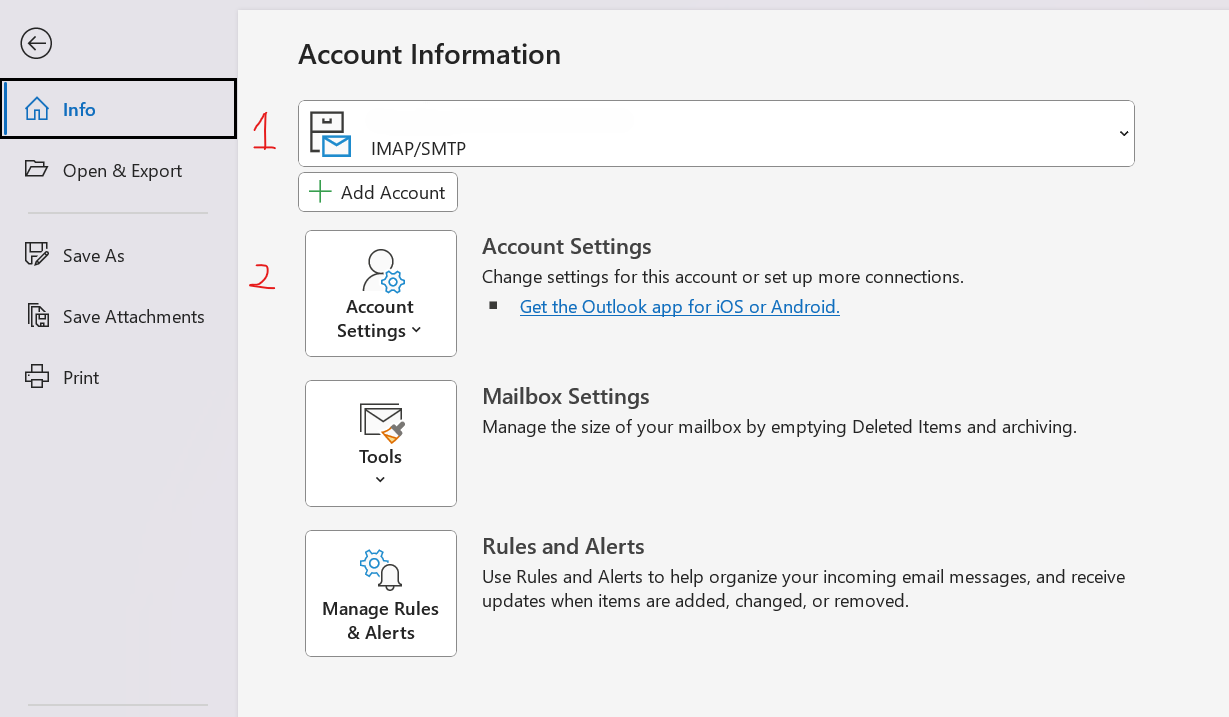
Click Account Settings dropdown (2)
Click Server Settings
Check if they are connected via IMAP or POP. The popup will either say "IMAP" or "POP" "Account Settings".
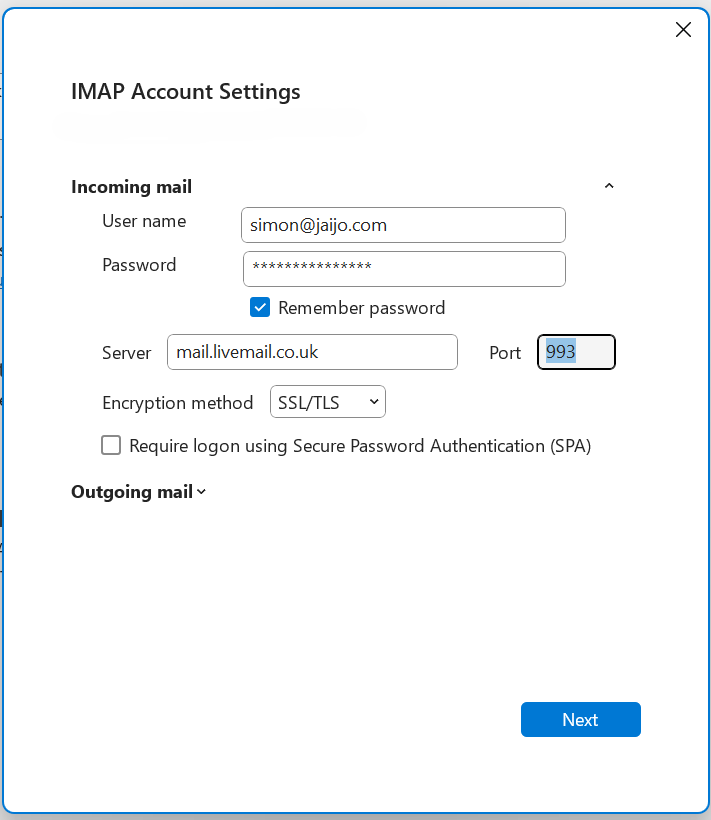
Run through the Incoming mail heading:
- Check that username is the correct email address;
- Re-type the mailbox password;
- Check that Server is set to "mail.livemail.co.uk";
- Check that Port is set to "993" for IMAP connections or "995" for POP;
- Check that Encryption Method is set to "SSL / TLS"; and
- Check that SPA is switched off.
Run through the Outgoing mail heading:
- Check that Sever is set to "smtp.livemail.co.uk";
- Check that Port is set to "465";
- Check that SPA is switched off;
- Check that My outgoing (SMTP) server requires authentication is switched on; and
- Check that Use same settings as my incoming mail server is selected.
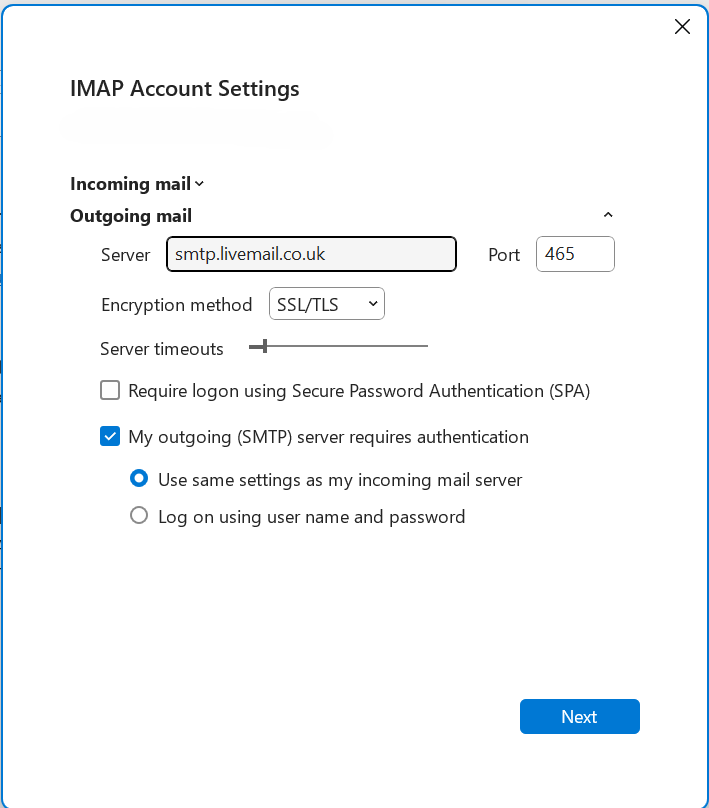
Click Next
If Outlook is able to connect to the mailbox again, a message will show saying that server settings have been updated sucessfully.
You can then run tests on sending and receiving to double check that everything is running correctly.
If not and you are getting an error message, there might be a server side issue. To confirm if this is the case, try setting up your mailbox on another device, or try connecting your device to another network, like your phones mobile data.
If after that you are still unable to connect, please contact us.
Was this article helpful?
That’s Great!
Thank you for your feedback
Sorry! We couldn't be helpful
Thank you for your feedback
Feedback sent
We appreciate your effort and will try to fix the article